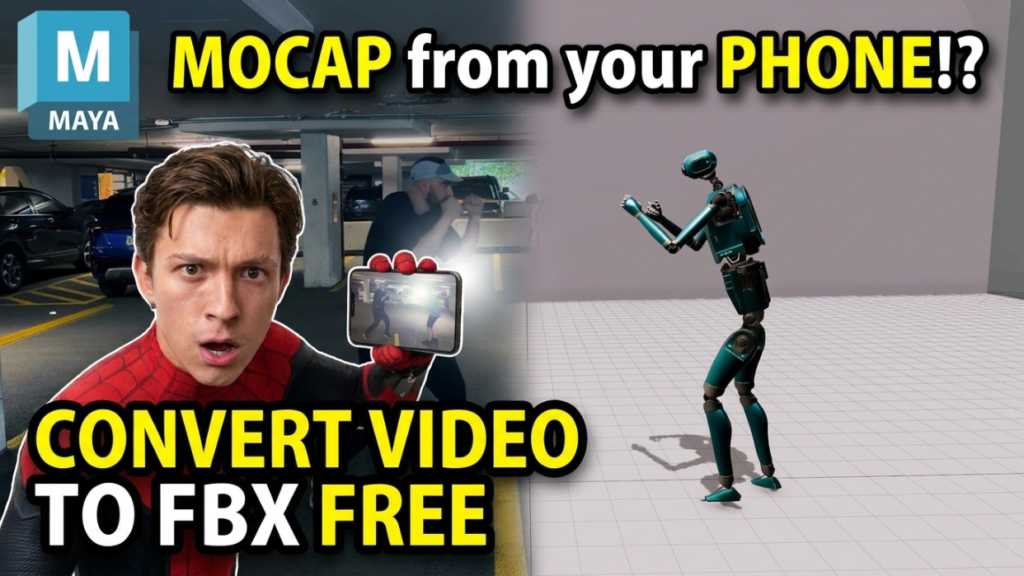
Turning a plain video into FBX motion data used to mean a mocap suit and a studio. Now a single phone clip and a free AI tool get you there. This is the exact, no-cost workflow to convert video to FBX motion you can drop into Blender, Unreal or Unity.
What you’ll need
- A single video of the movement — phone, webcam or camera is fine.
- A free AI mocap account (we’ll use QuickMagic, which exports FBX on the free plan).
- Your 3D software (Blender, Unreal Engine or Unity) to receive the FBX.
That’s it. No suit, no markers, no capture volume.
Step 1 — Record a clean clip
Capture quality decides output quality, so:
- Keep the whole body in frame, head to feet.
- Shoot from chest height, camera steady (a tripod or propped phone beats handheld).
- Use even, front-facing light — avoid strong backlight and shadows.
- Wear clothing that contrasts with the background; avoid baggy fabric that hides joints.
- Start and end in a neutral T-pose or A-pose for a couple of frames — it makes cleanup easier.
Slower, clearer movements track better than fast, blurry ones.
Step 2 — Capture the motion with AI
Upload the clip to your AI mocap tool. QuickMagic runs entirely in the browser, so there’s nothing to install — you upload the video, choose full-body (and hand/face if you need them), and let the AI reconstruct the 3D motion.
Preview the result before exporting. Check that the feet stay planted, the hips read correctly, and there’s no major jitter. If something’s off, it’s usually the source video — re-shoot with better light or framing rather than fighting the data.
Step 3 — Export as FBX
Once the capture looks right, choose FBX as your export format and download the file. FBX is the universal choice here because it carries both the skeleton and the animation, and every major 3D app reads it. (On free plans FBX is typically the available format; paid tiers add BVH, Mixamo, Unreal presets and more.)
Step 4 — Import into your 3D software
Blender
1. File → Import → FBX.
2. Enable Automatic Bone Orientation to avoid twisted bones.
3. Press play to confirm the armature moves.
4. Fix scale on import if needed.
Unreal Engine
1. Drag the FBX into the Content Browser.
2. Set it to import as a Skeletal Mesh / Animation.
3. Assign or create a skeleton, then open the animation asset to preview.
Unity
1. Drop the FBX into your Assets folder.
2. In the Import Settings, set Rig → Animation Type → Humanoid (or Generic).
3. Open the Animation tab to confirm the clip plays.
Step 5 — Improve the result (optional cleanup)
Single-camera captures can float or slide. If you want production-grade motion, run the FBX through Cascadeur: its AutoPhysics adds real weight and ground contact, and AutoPosing fixes broken frames — then re-export the polished FBX.
Tips for better FBX motion
- Capture a few seconds of clean idle at the start — useful for looping and blending.
- One person per clip; crowds confuse single-camera solvers.
- Keep limbs from crossing the body where possible to reduce occlusion errors.
- Retarget once to your character rig, then reuse that map for every future clip.
FAQ
Can I really convert video to FBX for free?
Yes. Upload single-camera footage to QuickMagic and export FBX on the free plan, then import to Blender, Unreal or Unity.
Do I need a special camera?
No. A phone or webcam works. Lighting and full-body framing matter far more than the camera.
Why does my exported motion float or slide?
That’s typical of single-camera capture. Clean it up in Cascadeur with AutoPhysics, or fix foot contact in your 3D app.
What if I need BVH instead of FBX?
Some tools export BVH directly; otherwise you can convert FBX to BVH inside Blender by importing then re-exporting.
Working in Blender specifically? See the best free AI mocap for Blender. Choosing tools? Read QuickMagic vs Cascadeur or browse the full free AI mocap directory.
More free mocap guides: AI motion capture from video, free markerless motion capture, is AI motion capture really free?.
Last updated: August 2026.
Disclosure: some links above are affiliate links. If you sign up through them we may earn a commission at no extra cost to you. It never affects our rankings.