The single most searched-for idea in free mocap right now is beautifully simple: point a camera at a person, get 3D animation out. No suit, no studio — just video in, motion out. AI made that real, and you can do it for free. Here’s how AI motion capture from video works, the best free tools for it, and how to get a clean result.
How video-to-mocap works
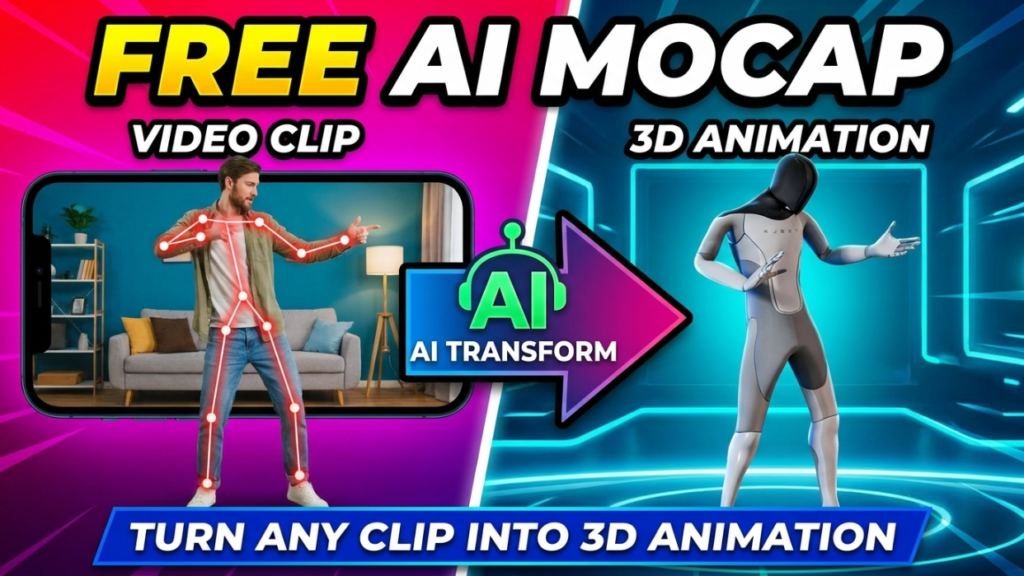
When you record someone moving, every frame is a flat 2D image. An AI mocap model does two jobs: it finds the person’s joints in each frame (pose estimation), then lifts those 2D joints into believable 3D positions over time. Stitch that across the whole clip and you get animation data — a moving skeleton you can drop onto a character.
Because the model was trained on enormous amounts of human movement, it can fill in what a single camera can’t literally see, like depth and the far side of the body. That’s why one ordinary video is now enough where you once needed a ring of cameras.
The best free tools for mocap from video
QuickMagic — the specialist for video-to-3D
QuickMagic is built for exactly this. Upload a single-camera clip in the browser and it reconstructs full-body, hand and facial motion, then exports FBX (and more formats on paid plans). The free plan gives you monthly credits, so you can run real footage without installing anything. For most people searching “mocap from video,” this is the starting point.
Rokoko Vision — free video or webcam solve
Rokoko Vision turns a webcam feed or an uploaded video into motion for free, exporting FBX/BVH. Pair it with Rokoko Studio to clean and retarget before export.
Autodesk Flow Studio — video-to-3D for cinematic shots
Flow Studio (formerly Wonder Studio) reads full body, hand and facial motion from video and can even replace the performer with a 3D character, delivering via USD into Maya, Blender and Unreal. Best when you want a finished shot, not just raw data.
Cascadeur — refine the result
Video-based capture from one camera often floats or slides. Cascadeur fixes it: import the FBX, run AutoPhysics for weight and ground contact, and AutoPosing to repair frames. The free tier covers the whole cleanup workflow.
Step-by-step: video to 3D animation
- Shoot the clip. Phone or webcam is fine. Keep the whole body in frame, shoot from chest height on something steady, and use even front lighting. Slower, clearer movement tracks better than fast, blurry action.
- Upload and capture. Drop the video into QuickMagic, choose full body (plus hands/face if needed), and let the AI reconstruct the 3D motion.
- Preview before export. Check that the feet stay planted, the hips read correctly, and there’s no major jitter. If it’s off, it’s almost always the source video — reshoot with better light or framing rather than fighting the data.
- Export. Choose FBX (the universal choice — it carries the skeleton and the animation).
- Import and retarget. Bring the FBX into Blender, Unreal or Unity and retarget it to your character’s rig.
- Clean up (optional). For production-quality motion, pass it through Cascadeur first.
Tips for clean captures
- One person per clip. Crowds confuse single-camera solvers.
- Contrast helps. Wear clothing that stands out from the background; avoid baggy fabric that hides joints.
- Keep limbs open. Motion that crosses the body causes occlusion errors.
- Book-end with a neutral pose. A second of T-pose or A-pose at the start makes cleanup and looping easier.
- Mind the ground plane. If feet slide, fix foot contact in your 3D app or let Cascadeur’s physics handle it.
When video-to-mocap is (and isn’t) the right call
Video capture is ideal for indie games, previs, YouTube, social clips, and any situation where speed and zero hardware beat sub-millimetre precision. It struggles with extremely fast motion, heavy occlusion, tight finger interactions with objects, and multi-person scenes. For those, marker-based capture or a multi-camera setup still wins — but for the everyday creator, a single video and a free AI tool is genuinely enough.
FAQ
Can I do motion capture from a video for free?
Yes. Upload single-camera footage to QuickMagic and export FBX on the free plan, then import to Blender, Unreal or Unity.
What video works best for AI mocap?
A steady, well-lit clip with the full body in frame. Lighting and framing matter more than resolution or camera quality.
Does video mocap capture hands and face?
Yes — QuickMagic and Autodesk Flow Studio estimate hand and facial motion from a single camera in addition to the body.
Why does my captured motion float or slide?
That’s typical of single-camera capture. Clean it up with Cascadeur’s AutoPhysics, or correct foot contact in your 3D software.
Related: free markerless motion capture tools, a full guide to converting video to FBX motion data, and the free AI mocap directory.
Disclosure: some links above are affiliate links. If you sign up through them we may earn a commission at no extra cost to you. It never affects our rankings.